



Frequently Asked Questions
1. Is it possible to remap a key or a mouse button regardless of the state of the modifier keys Ctrl, Shift, etc.?
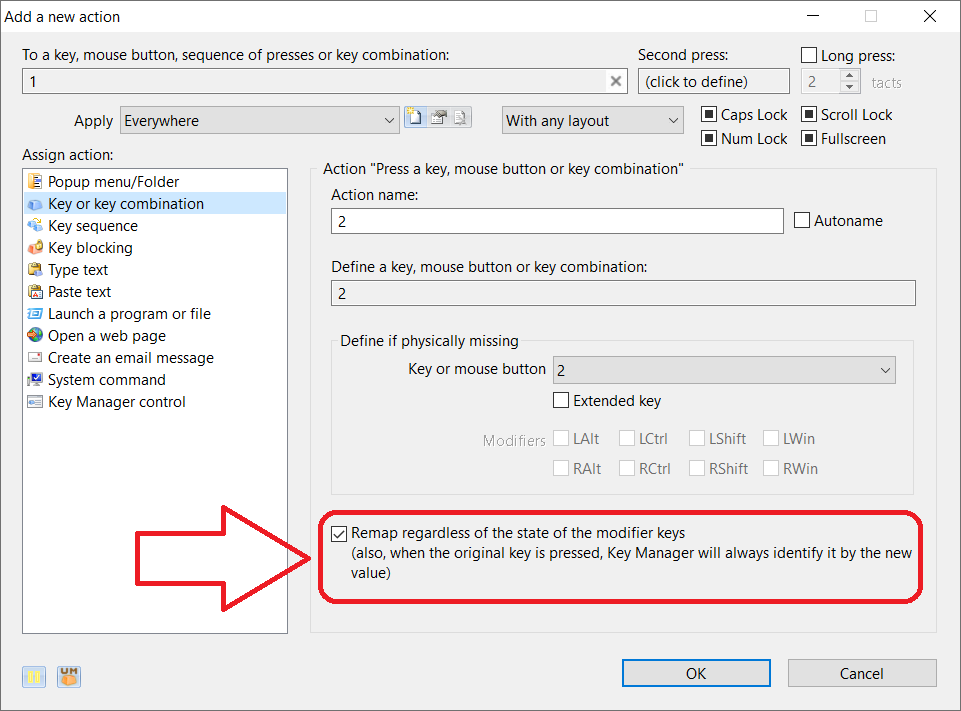
Yes, in order to do this, you must enable the "Remap regardless of the state of the modifier keys" option in action "Key or key combination" (see Image).
2. Key remapping doesn't work in one program. Why?
This may be happening because the program has higher-level permissions than Key Manager. You can try starting Key Manager with admin rights. To do that, unload Key Manager from the memory, right click on the Key Manager shortcut and select "Run as Administrator" from the context menu.
You can also try starting Key Manager later – that is, starting the program causing the issue first and launching Key Manager afterwards.
If you use Exceptions (the "Apply" field), then please check that the paths to the executable files are correct. They can change, for example, if profiles were transferred from another computer.
Check if Key Manager is paused. The pause mode can be enabled or disabled in the main program window, as well as by choosing the corresponding command from the context menu of the taskbar icon or by clicking the icon with the middle mouse button/wheel.
3. Key Manager stops working after a while and gives me the error message "Mouse Hook Error" (or "Keyboard Hook Error") when I exit it. How can I fix this?
Download and install the latest version of Key Manager.
-
You can also try to disable the following two options in the Key Manager Options window:
– Remap internal programmatic mouse button presses.
– Remap internal programmatic key presses.
4. Key Manager won't start at all. Why?
We have found out that Key Manager will not start if Comodo Internet Security 5 is running. To solve the problem, update the antivirus software or add keymanager.exe to Defence+ -> Defence+ Settings -> Execution Control Settings -> Detect shellcode injections -> exclusions in Comodo.
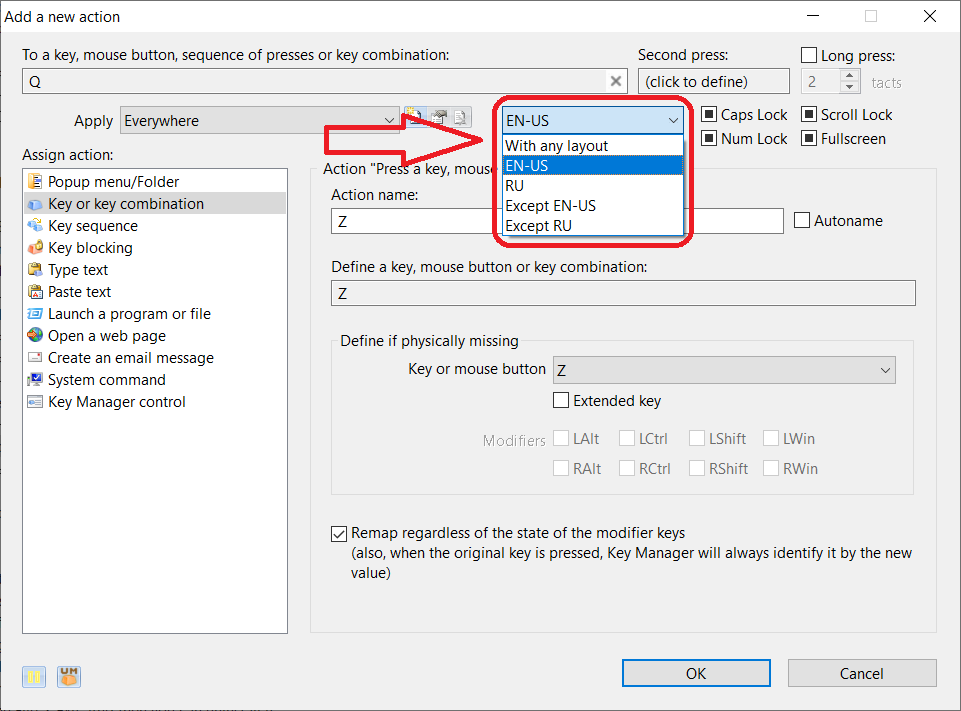
5. Is it possible to reassign keys depending on the keyboard layout?
Yes, it is possible (see Image).
6. Does Key Manager recognize additional mouse buttons, for example, many mice now have more than 5 buttons?
Key Manager recognizes 5 mouse buttons (left, middle/wheel, right, X1 and X2) as well as vertical and horizontal scroll wheels. To recognize other non-standard additional buttons, as a solution, you can use the software that came with your mouse and temporarily remap these buttons to unused keyboard keys, for example, to F13-F24, and then you can remap these temporary keys using Key Manager.
7. Key Manager conflicts with another program, what should I do?
You can try to disable the following two options in the Key Manager Options window:
– Remap internal programmatic mouse button presses.
– Remap internal programmatic key presses.
8. Is it possible to lock the computer (similar to Win + L)?
Yes, it is possible. You can use the "Launch a program or file" action with the following data:
Specify the path to a folder, file or program: rundll32.exe
Parameters: user32.dll, LockWorkStation
Show window: Hidden
9. Can I use the program to quickly launch menu items that have no hotkeys associated with them? For instance, menu items that are hidden deep in submenus?
Yes, this is possible. To do that, you can emulate all key presses required to access the necessary menu item. Please watch the following video:
You can do it using the "Key sequence" action:
1. Make sure that the "Pass key presses to the system" button (the icon depicting a globe with a key) is pressed/enabled and the "Record presses of mouse buttons" button (the icon depicting a mouse) is disabled.
2. Click the "Record" button. Once done, all key presses will be recorded.
3. Switch (using the mouse only) to the program in which you need to launch a menu item.
4. Press the Alt key (to open the menu) and use the arrow keys to navigate to the necessary menu item. Select it by pressing Enter.
5. Switch back to Key Manager (again, using the mouse) and stop the recording process. If you pressed an unnecessary key during recording, you can delete it from the list of pressed keys.
From now on, the selected menu item will be instantly launched when you execute this action in your program.
If you want this action to work in a specific program (or window) only, just create an exception for it.
10. My keyboard does not have keys for typing Euro (€), Pound (£), Bullet point (•) and Soft hyphen characters. Can I assign these characters to any key (or key combination)?
Yes, this can be easily done in several ways:
1. Use the "Type text" (or "Paste text") action by copying the necessary symbol from this page and assigning the action to a key, mouse button or key combination. The Soft hyphen character you can copy from this loooooooong word.
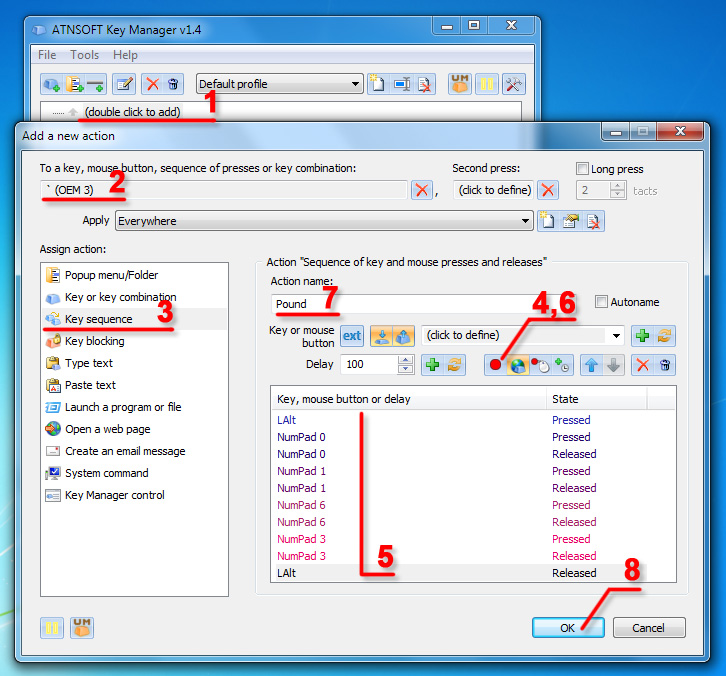
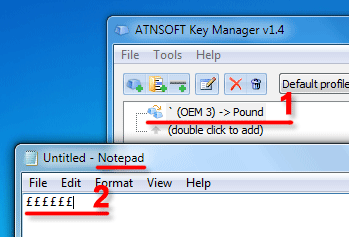
2. Use the "Key sequence" action and emulating a sequence of presses (see Image 1, Image 2), e.g: Alt + 0128 (€), Alt+0163 (£), Alt+0165 (¥), Alt + 0153 (™), Alt+0169 (©), Alt+0174 (®), Alt+0177 (±), Alt+0149 (•) and Alt+0173 (soft hyphen). Digits are entered in the NumLock mode.
Symbols and their codes can be obtained using the "Symbols" command in MS Word.
11. Can I parse a webpage and type the result (or show as a message box)?
Yes, you can use VBScript, for example:
Create the get_text.vbs file with the following content:
Set xmlhttp = CreateObject("msxml2.xmlhttp.3.0")
xmlhttp.open "get", "https://example.com", false
xmlhttp.send
Set WshShell = WScript.CreateObject("WScript.Shell")
WshShell.SendKeys WScript.Arguments(0) 'Type text received from Key Manager!
MsgBox "Page content: " & xmlhttp.responseText 'Page content message box!
And then in Key Manager you can use the "Launch a program or file" action with the following data:
-
Specify the path to a folder, file or program: c:\VBScripts\get_text.vbs
-
Parameters: "Text from Key Manager!!!"
-
Show window: Hidden
12. I can not run the SnippingTool.exe application from c:\Windows\System32\. Is this a bug or something else?
Just set the following path:
c:\Windows\sysnative\SnippingTool.exe
In 64-bit OS'es when a 32-bit application tries to access to c:\Windows\System32\ it is automatically redirected to the folder c:\Windows\SysWOW64\. Hence, you cannot start SnippingTool.exe because it is not present in that folder. The only way is to use c:\Windows\sysnative\ and bypass the redirection.
13. Is there a key for launching Key Manager in the background and placing it into the system tray right away? I need the program to be launched discreetly.
Yes, you can use the /hidden or /autorun key for this purpose. Note that if the /autorun key is used and the "Launch when Windows starts" option is not enabled, the program won't start at all.
14. Can I assign two or more actions to a single key?
No. If more than one actions are assigned to a key, only the top one in the list will be performed.
15. Is reverse key replacement possible?
It is. To do so, you need to make two replacements: replace the first key with the second one and then replace the second key with the first one.
16. Can I assign an action or a key combination to another key combination?
Yes, you can.
17. Can I redefine the Sleep key on my keyboard?
Yes, you can. However, you will first need to disable this action in Windows (Control Panel -> Power Options). Emulating the press of the Sleep key is not always possible. It depends on the hardware of your computer and your operating system.
18. Key Manager does not detect special keys on the keyboard of my laptop. Why?
Hardware manufacturers often provide specialized key mapping software for special keys on keyboards and laptops (for instance, such applications for volume control buttons show the volume level on the screen). Sometimes such applications "monopolize" keys, which makes their remapping impossible. Not installing such programs may be one of the possible solutions.
19. I have a laptop. The Fn key on my keyboard doesn't work after redefinition. Why?
Some models of laptops and specialized keyboards have keys with hardcoded functions, which makes them hard to identify and read.
20. Is it possible to remap the special key " " on Xiaomi Redmibook Pro 15 laptop?
Yes, but for this you need to disable the OSD Utility (Xiaomi Inc.) application in Windows startup. The Fn key on this laptop can also be remapped.
21. Is it possible to remap two, three or four-finger tap and two-finger swipe on the touchpad of my Xiaomi Redmibook Pro 15?
Yes, Key Manager allows you to do this. There may be limitations on some devices from other brands, but it should definitely work on this one.
22. Can I swap the shifted/unshifted characters for any one key? Some examples:
1) when I press the +/= key, I want the unshifted keystroke to produce +, and the shifted keystroke to produce =;
2) when I press the "/' key, I want the unshifted keystroke to produce ", and the shifted keystroke to produce ';
finally, I would like to reverse the entire number/symbol row (top of keyboard), so that I won't have to press Shift when I want to produce !, @, #, ... and ).
Yes, you can create two profiles. One of them will contain shifted keystrokes (ex. 1 -> Shift + 1) and you can switch between the profiles using a predefined key ("Key Manager control" action -> "Select a specific profile").
23. There are two ways to record a macro:
1) automated recording of user keyboard/mouse actions, followed by some editing;
2) by-hand entry of each macro step into Key Manager, because on-the-fly macro recording is not supported. Would you please clarify this for us?
On-the-fly macro recording is supported. Please enable the "Pass key presses to the system" mode (in the "Key sequence" action properties).
24. In Key Manager (or Key Remapper?) can I define global keystroke definitions? For example, I want the little-used Scroll Lock key to produce a Ctl+C Copy everywhere (e.g. Desktop, Windows 7, popup menus, etc.).
Global definitions are used by default and work in all programs.
25. Does Key Manager support macros consisting of mouse moves? Relative to screen? Relative to app window? Relative to app window pane?
Yes, it does (v1.10+). "Relative to app window pane?" – we will try to implement this feature in future versions.
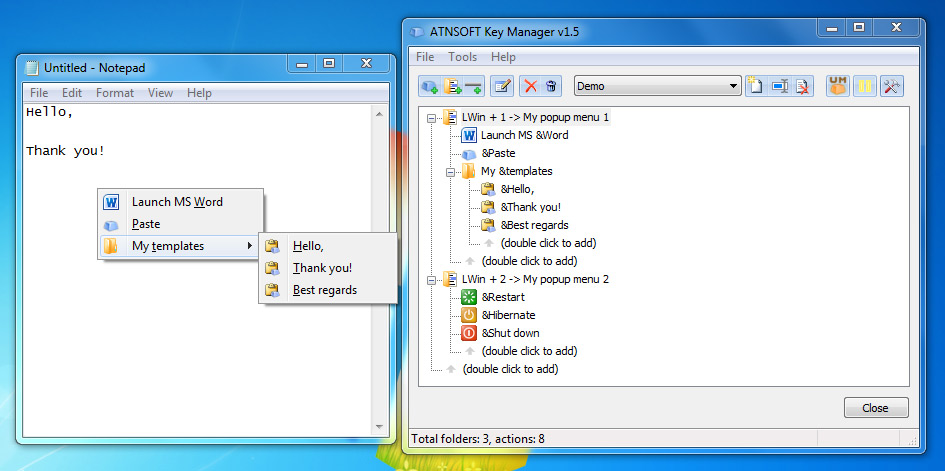
26. What I would like is the ability to create a hierarchy of shortcuts. The first entry (say, winkey-1) takes me to my first list of shortcuts. Some are actually shortcuts, others are pointers to the next level down. And so on. Meanwhile, at the top level, winkey-2 takes me to an entirely distinct, second list of shortcuts.
Again, you can use the popup menu actions with hotkeys. To set hotkeys to menu items, use the & sign before the necessary character in the names of nested menu actions.
See Image — To type "Hello" you can simply press Win + 1, t, h
27. Can I install Key Manager under Windows 98, Windows ME or an earlier version of Windows?
No. Due to the fact that there are no users of these operating systems, Key Manager does not support them. This was done for optimization purposes in order to keep Key Manager free of unused functions.
Ask a question you haven't found an answer to: