


Key Remapper
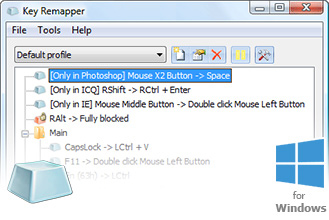
Intended for remapping keys, mouse buttons and mouse wheel actions,
Key Remapper allows you to:
-
Remap keys, mouse button presses and the mouse wheel rotation to different values and even to non-existing keys and mouse buttons. For example, you can replace CapsLock with “Middle mouse button”, F11 – by “Mouse wheel down”, F12 – by Win, Browser Home or “Mouse button X2” (which can be physically missing on your input devices).
-
Perform reverse remapping of keys and mouse buttons, i.e. virtually change their functions. For instance, you can virtually swap the Right Shift and Enter keys, the “Middle mouse button” and the Left Shift key.
-
Replace specific keys or mouse buttons by key or mouse button combinations with modifiers. For instance, you can replace the Browser Forward key (usually found on multimedia keyboards) by the Alt+Shift+Esc (quick switching between programs) combination, replace the X1 mouse button by the Ctrl+C (copy) combination, assign the Ctrl+”Left mouse button” combination to the right Alt key.
-
Emulate double mouse button and key presses and set the necessary interval between presses (double click with a delay).
-
Block (disable) keys, mouse buttons, the mouse wheel rotation and their combinations with various modifiers.
-
Restrict remapping and blocking to specific programs and windows. For instance, you can configure the software to allow the replacement of the X1 mouse button by Space only in program A and nowhere else. Another example would be: allow NumLock to be replaced by the Ctrl+C+C (double press of the “C” key) combination everywhere except for windows with the word “B” in their title.
-
Create and quickly (two clicks) switch between key sets.
 You can also try our more functional program — Key Manager. It allows you to remap combinations of keys and mouse buttons, sequences, and long presses (press and hold). You can display your actions in the form of pop-up menus that can be opened with hotkeys, record, edit, and execute macros, emulate mouse clicks, type and paste text, and much more.
The software does not alter the scan codes stored in the registry and does not require the system to be restarted in order to apply mapping changes.
You can use Key Remapper to remap virtually any keys and mouse buttons.
| Interface Languages: |
|
|||||
| System Requirements: | Windows 11/10/8.1/8/7/Vista/XP/2000/Server 2003-2025. | |||||
 English,
  Deutsch,
  Español,
  Français,
 Italiano,
  Русский,
  日本語.
日本語.Screenshots
|
|
|
|
Getting Started
Downloading and installing Key Remapper
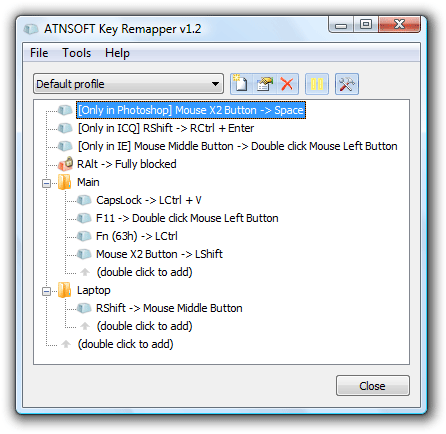
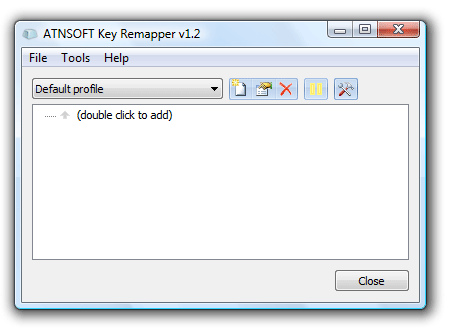
To start working with the program, you need to download the installation file and launch it. The installation process will start. Once finished, the program is ready to be used. After the program is started, the window shown in the screenshot below will appear:
Working with the program
The top part of the screen is occupied by profiles management block followed by the main area, which allows you configure replacements and key blocks.
Profiles
You will need different sets of keys for specific programs and purposes, that's why the application features profiles that allow you to create configurable sets of key replacements and quickly switch between them. You can create (the "Add new" button  ), rename (the "Rename" button
  ) and delete (the "Delete" button
  ) them.
When you create a profile, a new window prompts you for the profile name and asks whether you would like to fill the new profile with the data of the currently active one.
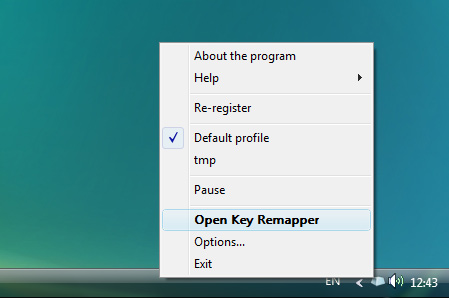
You can switch between profiles using the dropdown list or by right clicking on the program icon in the taskbar and choosing the necessary profile from the context menu.
Key or mouse button definition, remapping and blocking
In order to replace one key (or mouse button) by another, you need to define the key that will be physically pressed and the key that will be reported to the system as pressed:

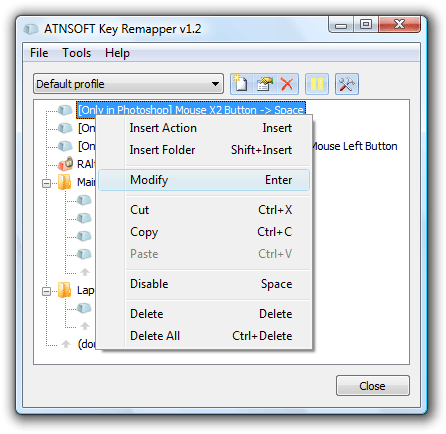
To define a key replacement, double click the "(double click to add)" line. This operation can also be performed using the Insert key or the context menu:

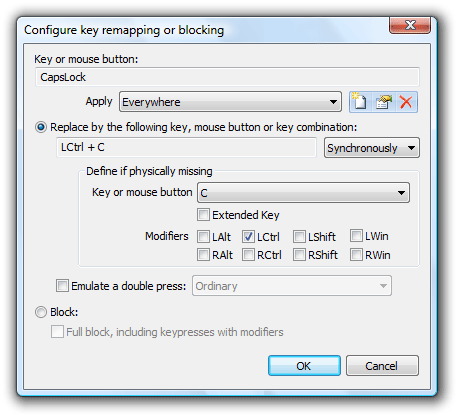
The following window will appear:

When this window appears, the focus automatically goes to the definition of the key being pressed.
Press the necessary key or mouse button and select an action: replace it with another key (or a mouse button), a key combination or block.
If you need to define the new value of the key, set the cursor into the input field under the "Replace by the following key or key combination:" checkbox and press the necessary key, mouse button or key combination (press the main key while holding down the Alt, Ctrl, Shift and/or Win modifiers) or, if the necessary keys are missing on the keyboard, you can define them by choosing the main key from the list. If you need to define modifiers, check the boxes next to them. If you need to press a mouse button or turn the mouse wheel, select the necessary action starting from the word "Mouse..." in the dropdown list. For instance: "Mouse Left Button", "Mouse Wheel Down" and so forth.
If you need to block a key, select the "Block" checkbox. If the "Full block" checkbox is unchecked, single keypresses will be blocked, but keys won't be blocked when pressed with modifiers (Ctrl, Shift, etc.). If it is checked, keys are blocked completely. For instance, if you block the "A" key and leave the "Full block" option unchecked, the Ctrl+A combination will work. If the option is enabled, the combination will have no effect.
Once you are finished, press "OK".
If the program is unpaused, key replacement will work.
If you need to swap keys, you will need to define two replacements.
Please note that you cannot assign two replacements or blocks to a single key. If it happens, only the top action from the list is performed. If one action is in a folder and the other one working with the same key is below it, the action in the folder will be performed.
Working with replacements and blocks
The program allows you to store replacements and blocks in folders that can be created by the Ctrl+Insert key combination or in the context menu - "Insert folder".
You are also free to move actions and folders by dragging them with your mouse. If the Ctrl key is pressed when you start dragging, the action or the folder is copied. Habitual actions of cutting, copying, pasting and deleting are also supported.
If you need to temporarily disable a specific replacement or block (or even a whole folder of actions), you can use the space key or the "Disable..." item of the context menu. Repeat the operation to enable actions.
Program hotkeys
| Ctrl+P | Pause |
| Insert | Insert an action (replacement or block) |
| Shift+Insert | Insert a folder |
| Enter | Add/modify a folder or an action depending on context |
| Space | Disable/Enable an action or a folder (including the actions within) |
| Ctrl+Space | Disable all the actions of the folder |
| Shift+Space | Enable all the actions of the folder |
| Ctrl+Shift+Space | Invert the statuses of all actions of the folder (enables the disabled ones and vice versa) |
| Delete | Delete a folder or an action |
| Ctrl+Delete | Delete all folders and actions (clear the current profile) |
| Shift+Up | Move a folder or an action up |
| Shift+Down | Move a folder or an action down |
| Ctrl+X | Cut an action or a folder |
| Ctrl+C | Copy an action or a folder |
| Ctrl+V | Paste an action or a folder |